Dashboard and monitoring
Admin → Dashboard is the health picture: live tiles for active calls (against your licensed maximum), extension and trunk registration, CDR volume, recording and disk usage — plus system information (FQDN, addresses, install type, uptime, license) and the storage/maintenance panel. The tiles count what matters: the license tile counts this system's users, active calls include callers sitting in an IVR, IP-authenticated trunks count as online, and Active Calls shows the external capacity separately from the system limit.
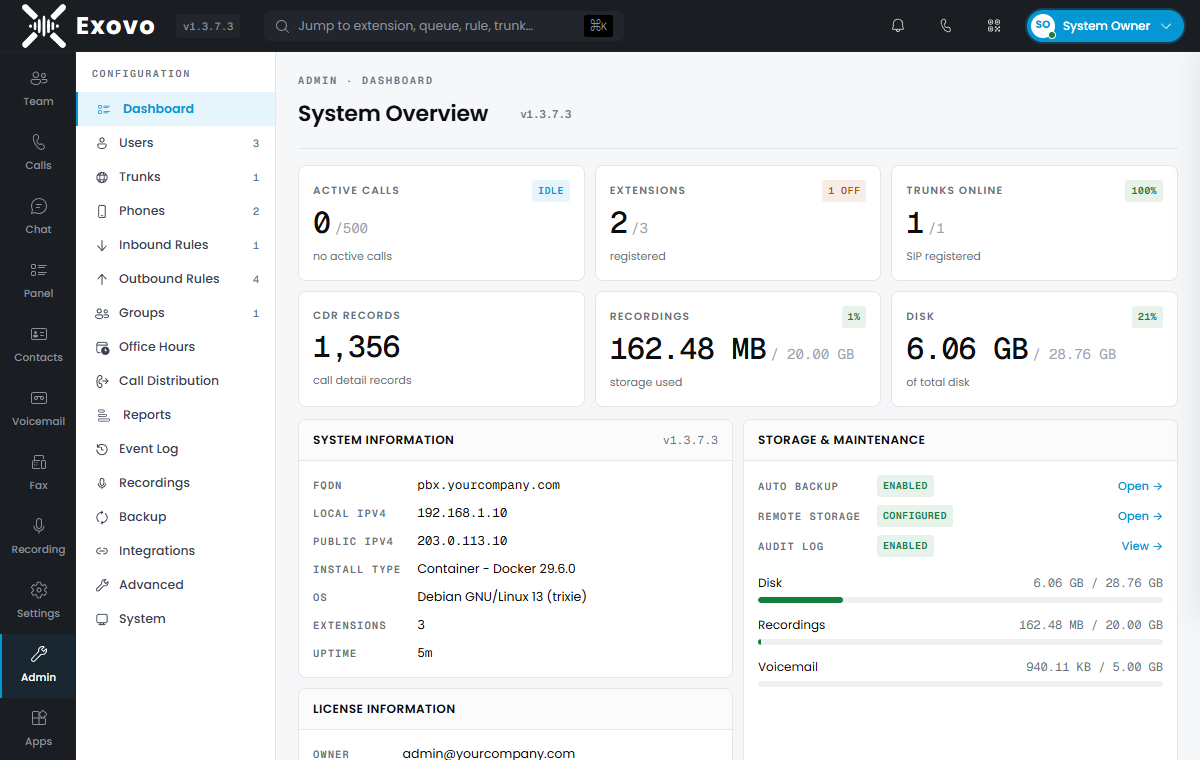
Banners surface the things that need a person, and clear themselves when the condition does:
- a license banner when enforcement is active;
- an update banner when the registry has newer components;
- a saved setting that needs a phone-system restart to apply, with a link to Services;
- the phone system not responding;
- scheduled backups being skipped because no backup passphrase is set;
- SIP scanning arriving from the internet — the sign of a port-forward that should not be there (see going live).
Services
Dashboard → Services watches the containers themselves — per-service status, CPU, memory and network, with scoped restart actions. It's the "is the telephony core actually up" view, one level below the application tiles.
Diagnostics
When something needs a second pair of eyes, the Diagnostics line on the dashboard's Storage & Maintenance panel gathers everything support needs into one zip: the logs of every container in the stack (with timestamps), the telephony core's own log, live status (registrations, trunks, channels, SIP profiles), versions, storage, license state, and a configuration summary (trunks and extensions without credentials, system parameters with secret values withheld, the recent event and audit logs). Passwords, tokens and SIP digest responses are removed before anything leaves the box.
Download builds the bundle and saves it through your browser — attach it to a ticket or open it yourself.
Submit sends it straight to the Exovo Portal, after a confirmation. Exovo support and your managing partner can download it from your system's page there; the last few submissions are kept. Submit is available once the system is registered with the Portal.
SIP trace switches the telephony core's SIP message logging on for up to 15 minutes. Start it, reproduce the problem on the phone, then Download or Submit: taking the bundle stops the trace and the bundle's core log holds every SIP message exchanged in that window (registrations, NOTIFYs, REFERs, the lot), which settles questions a normal log cannot. Left alone, the trace switches itself off after 15 minutes. SIP passwords are never logged; digest responses are redacted like everything else. The bundle's summary says whether a trace was active when it was taken.
All three actions are recorded in the audit log.
Event log
Admin → Event Log is the running record: phone registrations, trunk and bridge up/down transitions (periodic re-registrations are deliberately not logged), security events (anti-hacking blocks, blacklist hits, toll-fraud rejections), emergency calls, resource thresholds, backup outcomes. Every entry is a named event from a fixed catalogue with a severity and a source, so you can filter by source or event type, page through history, and expand any row for its structured details (the IP, the trunk, the threshold that tripped). Retention is set on the page itself — events older than the limit are trimmed automatically. When something "was weird yesterday," this is where yesterday still exists.
Maintenance and data purges
Admin → System → Maintenance shows how much database space the growing logs consume — call history, chat history and the event log — each with a Purge button, plus a Purge All. Purging permanently deletes every row in that category; it can't be undone, and each purge is recorded in the audit log. Reach for it when a table has grown huge or before you repurpose a box.
Voicemail is purged separately on Admin → System → Voicemail: Purge clears every user's messages at once, or set automatically delete voicemails older than a number of days to keep the store trimmed without manual runs. Like the recordings rule it also clears archived copies from remote storage, so it cannot be set lower than the voicemail auto-archive age.
Reports
Admin → Reports catalogs the call-statistics reports (queue performance, agent activity, call volumes) by category — the analytical companion to the panel's live wallboard.
Call Log: where a call went
Admin → Reports → Call Log lists every call. For an inbound call the To column is the number that was dialed — a main number, a ring group — and Handled by is the person who actually answered it (or the mailbox or destination it ended at, when nobody did). Rows with an arrow expand to show the call's route: each stop it made, in order — ring group, queue, menu, extension, voicemail — with how long it rang or waited there, how long it talked, and who picked up. A call that waited in a queue, was answered by one agent and then transferred to a colleague reads as three lines.
A stop is a destination, not a phone: a ring-all group or a fifteen-agent queue is one line that names who answered, not a line per phone that rang. Search matches the person who answered as well as the numbers, and the CSV export carries Answered By, Ended At and Route columns. Users see the same detail for their own calls under Call History, which includes calls that reached them through a main number, group or queue. Calls recorded before this feature shipped show no route.
Transfers and the call number. Every call has a short Call number (017-345) you can read out
or type into the search box. When a call is handed over with an attended transfer it stays one row: its
route gains a Consult call line — the short call the transferor made to the colleague first — and a
Transferred to line showing who took the caller and for how long. (The consult call still appears in
the two users' own Call History, where it is simply a call they made and received.)
Blocked attempts are not calls. Internet scanners and toll-fraud probes constantly send call
attempts to any reachable phone system; Exovo refuses them before they reach anything. They are
kept on record but stay out of the Call Log, users' call history and the call statistics. To
review them, set the Call Log's Direction filter to Blocked (their status reads
rejected): the source address of each attempt is what the
automatic IP bans act on. In data exports they carry the
direction blocked.
Scheduled reports
Admin → Reports → Scheduled Reports emails a report to a list of recipients on a schedule as a CSV attachment, generated automatically. Pick a report (call log, inbound/outbound calls, queue callbacks, or failed callbacks), a cadence (daily, weekly on a chosen day, or monthly on a chosen date) and a time, how many days back it should cover, and the recipients. Times are in the system's timezone and stay put across daylight-saving changes. Pause a report without deleting it, or Run now to send one immediately (handy for checking recipients and email are set up). Sending requires SMTP to be configured.
Alerts: monitoring that finds you
Admin → System → Alerts turns events into email:
- System thresholds — CPU, memory, disk and recording-quota percentages. Each raises an Event Log entry when crossed and clears once the value drops back below the threshold with a small margin, so a value hovering at the line doesn't flood you.
- The alert checkboxes — each one emails you when its event is logged: a threshold crossed, a trunk failing to register or going down, a call to a blocked country, a backup finishing or failing, abuse-control rejections, a blacklisted IP, an emergency call.
- Which other events to send — choose a minimum severity (everything at or above it is emailed) and, independently, subscribe to specific events from the catalogue. Once either is set, emergency calls are always sent. Repeats of the same event for the same object are held back for 15 minutes.
Recipients are the system admins, optionally owners, plus any extra addresses. Five minutes configuring this page is the difference between "the trunk failed over at 2 AM and the morning shift never knew" and an email at 2:01.
Remote syslog
Admin → Integrations → Remote Syslog streams events and audit records to an external syslog collector (SIEM, log aggregator, compliance archive) as RFC 5424 messages over UDP, TCP, or TLS. Choose which streams to forward — System alerts, PBX alerts, and audit logs — independently. Test connection sends a probe message, and the page shows a live count and the time of the last forward. Delivery is best-effort and never blocks the PBX: if the collector is unreachable the forwarder reconnects with backoff, and a full internal buffer drops the oldest records rather than stalling. For TLS, the collector's certificate must be trusted by the system.
Data connectors
Admin → Integrations → Data Connectors exports call records — and, optionally, recording metadata
— to an external PostgreSQL database for reporting, analytics, or long-term archival. Give it the
connection details (the password is stored encrypted), choose what to export and a schedule (hourly,
every 6 or 12 hours, or daily at a set time), and Test connection to verify it. The connector
creates the target tables (exovo_cdr, exovo_recordings) itself and exports incrementally from
where it left off; re-runs are safe because inserts are idempotent. Delete transferred data removes
the exported rows from Exovo once they're safely in the external database (off by default). The page
shows when the last export ran and any error. Only data Exovo actually stores is offered — call records
and recording metadata; there are no system- or audio-metric tables to export.